


There are few more stressful moments in drone flying than the one where the aircraft is up, the battery is falling, and it will not come down. It hovers, or drifts, or climbs — and the landing command, or the return-to-home button, does nothing useful. The instinct is to keep pressing things. The right move is to stop, work out what the drone is doing and why, and then bring it down deliberately.
This guide covers the two problems that arrive together: a drone that will not land, and a return-to-home function that will not work. They usually share a cause — the drone does not know where home is, or does not trust the position it has — and the fixes are in the same checklist. It is written for the pilot with a drone in the air right now: read the first two sections first, then the cause that matches what your drone is doing.
The Short Answer: RTH Fails for a Reason — Check Home Point, GPS and Settings

Return-to-home needs three things, and it will not work without all of them. First, a home point recorded at takeoff — the position the drone returns to. Second, a strong GPS lock, so the drone knows where it is relative to that point. Third, the failsafe and signal settings configured so that a lost link actually triggers the return. If any one of those is missing, the return-to-home button does nothing, or does something unexpected.
The landing problem is usually separate but adjacent: a drone that will not descend is often obeying a sensor — landing protection that thinks the ground is unsafe, a vision sensor confused by the surface below, or a low-battery state that has already taken control. Work the two problems separately: first get the drone under control, then bring it down by hand if the automatic systems will not do it.
What RTH Actually Does (and What It Does Not)
Return-to-home is a safety net, not an autopilot. On most consumer drones it works like this: the drone records a home point when it takes off with a good GPS lock, and when you press the return button — or when the signal is lost, or the battery reaches a critical level — it climbs to a preset altitude, flies in a straight line back to that point, and descends to land. That is all it does. It does not choose a better landing spot, it does not know about a tree that grew since takeoff, and it does not re-plan its route.
The straight line is the part that catches pilots out. Return-to-home flies directly from where the drone is to where home is, at the set altitude. If anything stands in that line — a tree, a building, a hill — the drone will fly into it unless its obstacle sensors stop it first, and not every drone has them. The other limit is the home point itself: if the drone recorded its home point badly, or you moved after takeoff, it will return to a place you no longer are. Understanding what RTH is — a straight-line return to a recorded point — explains most of the times it seems broken when it is actually working as designed.
No Home Point Recorded
The most common reason return-to-home does nothing is that there is no home point to return to. The drone records its home point at takeoff, when it has a satellite lock — and if you took off before the lock was strong, or indoors, or under trees, the point may never have been recorded, or recorded badly.
The signs are clear in hindsight: the app never showed the home-point confirmation, the map shows the drone’s position drifting or missing, or the return button is greyed out. The fix for the next flight is a habit: wait for the lock before takeoff. Let the drone acquire a strong satellite fix, watch the app confirm the home point, and only then take off. Taking off on a weak lock is how good drones earn unfair reputations. Our guide to a drone whose GPS will not lock covers the causes — metal nearby, interference, a compass that needs calibrating — and the order to check them in.
If the drone is in the air right now without a home point, return-to-home cannot help you. Fly it back manually, keeping it in sight, and land it yourself. Do not wait for the battery to force the issue.
Weak GPS: The Lock That Was Never There
A weak GPS lock is the quiet version of the same problem. The drone has some satellites — enough to show a position on the map — but not enough to trust it, and the return-to-home function needs a lock it can trust. The symptoms: the drone drifts in hover, the map position jumps, or the drone warns about weak GPS while still flying.
Weak locks come from the environment as much as from the drone. Tall buildings, deep valleys, dense tree cover and metal structures all block or reflect satellite signals. A launch from a car roof, a metal balcony, or a parking structure is a classic cause: the compass is confused by the metal and the GPS is degraded by the structure at the same time. Move the launch point — grass or dirt, away from metal and concrete — and the lock usually appears. If it does not, the compass is the next check: our guide to calibrating a drone compass walks through the procedure, which matters here because a compass that has not been calibrated properly can make the drone think it is facing a different direction from the one it is actually facing — and a return-to-home flown on a wrong heading goes the wrong way.
RTH Altitude and Obstacles

Return-to-home climbs to a preset altitude before it flies back — and if that altitude is set lower than the trees or buildings between the drone and home, the return flight hits them. This is the cause behind a whole class of “RTH flew into a tree” stories: the function worked, and the altitude was wrong.
Set the return altitude above the tallest obstacle between you and the places you fly, every time you fly somewhere new. The setting lives in the app’s safety or return-to-home menu, and it is worth checking before takeoff rather than discovering mid-return. In the same menu, check what the drone is set to do on signal loss: return to home, hover, or land. That setting is the one that decides what happens when the video freezes and the sticks stop answering — and a pilot who has never looked at it is trusting a default they have never verified. If the drone is returning now and you can see it heading for an obstacle, cancel the return and fly it manually: the override exists for exactly this situation.
One more setting worth knowing in the same menu is the dynamic home point. Some models can update the home point to the controller’s current position, which is the right choice when you are moving — flying from a boat, a car, or along a trail. If yours offers it, use it when you move; if it does not, keep the takeoff point in sight and remember that the drone’s idea of home is the place you left, not the place you are standing.
The Controller Override: When RTH Ignores You
Sometimes the drone seems to ignore the controller entirely during a return: you push the sticks and nothing happens, or the drone keeps climbing when you want it down. This is usually the drone following its own programming — during a return-to-home, many drones restrict stick input, and during a low-battery return they may ignore it almost entirely, because the battery state has already taken priority over your commands.
Low battery is the trigger most pilots meet. When the battery reaches the level where the drone decides it must come home, it will prioritise the shortest route home above your commands, and fighting it wastes the power it needs to get there. The right response is to let it return, watch it, and be ready to take over only if it is clearly going wrong — into a tree, toward water, over a road. A drone trying to return on a low battery may shut down en route, drift off course, or hit an obstacle before it lands, so the margin you should have kept is the one you should keep next time: come home with charge to spare. Our guide to why a drone battery drains too fast covers the habits that leave you with more reserve at the end of a flight.
When the Drone Will Not Descend
A drone that hovers and refuses to come down is usually obeying a sensor. Landing protection — the system that checks the ground below before descending — will hold the drone up if it thinks the surface is unsafe: water, a reflective surface, a slope, or a surface it cannot read. Vision sensors can be confused by the same things, and a drone hovering over a car roof, a glass table, or a swimming pool may refuse to land on it.
The fix is to move the drone sideways, over a surface it can read — flat ground, grass, a clear landing pad — and try again. If it still will not descend, try turning off the landing protection in the app if your model allows it, and land manually at low speed, ready to catch a tip-over. Wind is the other cause: a drone fighting a strong wind at low altitude may be using all its power to hold position, and descending into the wind’s grip takes more power than it has to spare. In strong wind, fly the drone downwind to a sheltered spot first, then land. And if the drone is climbing instead of descending — the most frightening version of this fault — check for an updraft over a hot surface, and for a stuck or misread altitude sensor: land it manually with gentle down stick, in small inputs, and do not fight it with full stick, which some drones ignore in that state.
The Manual Landing: Your Last Resort
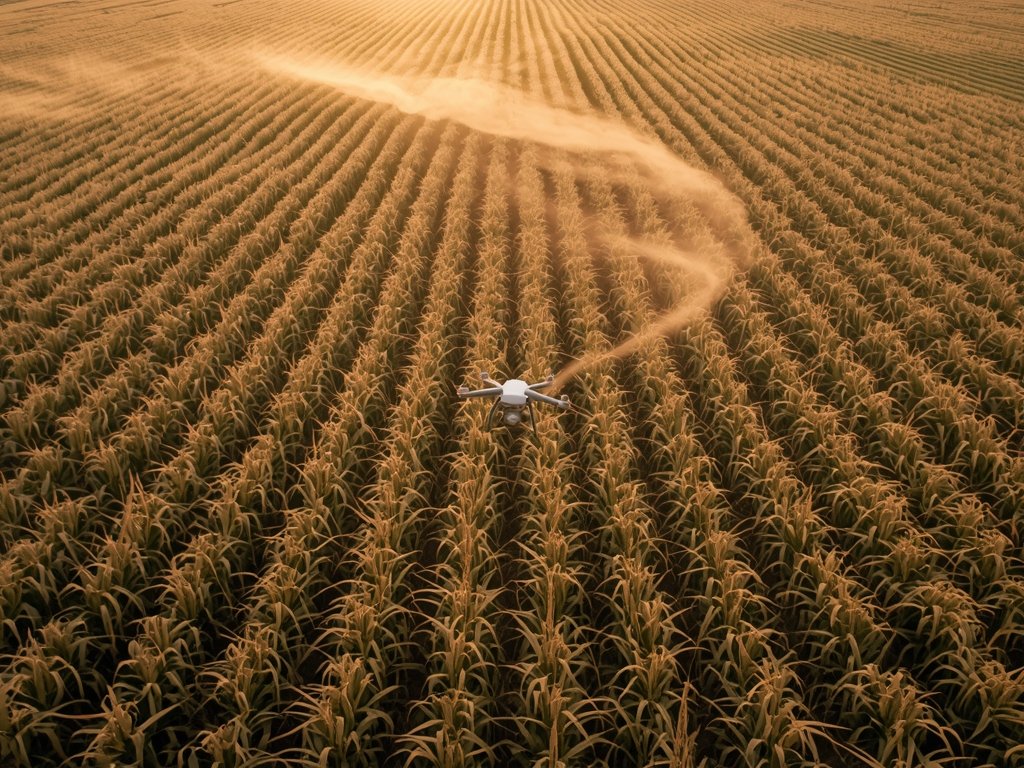
If the automatic systems will not bring the drone down, bring it down yourself. Keep it in sight at all times, fly it back over open ground, and descend slowly and steadily. Do not rush the descent: a fast descent into the drone’s own disturbed air — the vortex ring state — can make it drop suddenly and uncontrollably at the last few metres, which is why a slow, deliberate descent with a little forward movement is safer than a straight vertical drop.
If the drone will not respond to the sticks at all, do not keep pressing things at random. Power-cycle the controller, check the connection, and try again — a controller that has lost its link will often reconnect and give you control back. As a final resort, let the battery run down in a safe hover over open ground: the drone will land itself when the battery reaches its critical level, and a landing on grass from a low hover is better than a flyaway. That is a last resort, not a plan — but it is the one that has saved more drones than any other in this situation.
After It Lands: The Checks Before the Next Flight
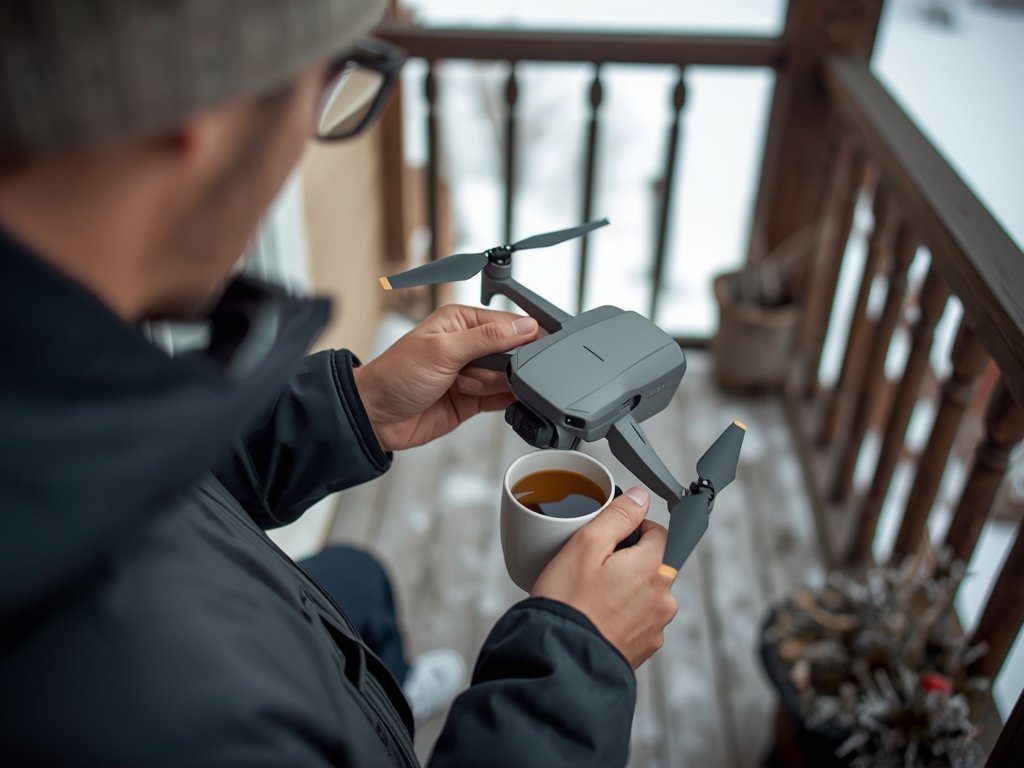
Once the drone is down, do not simply charge it and fly again. Work out what happened, because the same cause will happen again on the next flight. Was the home point recorded? Was the GPS lock strong before takeoff? Was the return altitude high enough? Was the signal-loss setting what you thought it was? Answer those four questions from the flight log if your app keeps one — the log shows the satellite count, the home point, and the moment the return was triggered, and it removes the guessing.
Then fix the settings before the next flight: record the home point properly, set the return altitude for the location, and confirm the signal-loss behaviour. And if the drone still will not take off or behave after the incident — the companion fault to this one — our guide to a drone that will not take off covers the checks in order. A drone that will not land is a drone that needs its settings understood, not its hardware replaced — and DJI support can confirm whether a persistent fault is a setting or a sensor that needs a repairer.
A drone that will not come home is frightening, but it is rarely mysterious. Home point, GPS lock, return altitude, signal-loss setting — check those four, in that order, and the drone comes home. And the habit that prevents the whole situation is the simplest one in this guide: wait for the lock, watch the home point confirm, and only then take off.
Join Our Pilot Community
Connect with fellow drone enthusiasts, share your aerial shots, and get access to free PDF ebook guides.