


There is a special frustration reserved for landing after a great flight, opening the footage, and finding nothing — or a card error and a handful of broken files. SD card errors are one of the most common drone problems, and one of the most misunderstood. Pilots blame the drone, replace the card with another one just like it, and get the same error, because the fault was never the drone: it was the card’s speed, its format, or the fact that the card was a fake.
This guide covers the three ways an SD card fails in a drone — not recognised at all, too slow to record, or corrupt — and the fix for each. It also covers what card to buy, and what to do when the footage on a failed card is the only copy you have.
What the Error Actually Means


SD card errors come in three kinds, and telling them apart is the first step, because each one has a different fix. A card that is not recognised at all is usually a format, seating or compatibility problem. A card that stops recording, or shows a write-speed error mid-flight, is a speed problem: the card cannot keep up with the video the drone is writing to it. A card that shows corrupt files, files that will not play, or footage that ends abruptly was usually interrupted while writing, has been in heavy use too long, or was never what its label claimed.
Note the exact wording if you can. “SD card error”, “card not detected”, “write speed too slow”, “card full” when it plainly is not — each message is a clue. Take a screenshot first: the wording tells you which section you need.
Before you go further, separate the card from everything around it. If the app will not connect to the drone at all, the problem may be the link, not the card — our phone connection fix covers that side. If the drone records fine but the photos are soft or hazy, the card is innocent and the lens is not — see our blurry camera fix.
Start With the Card Itself: Speed, Size and Fakes
The speed rating on a card is the single most important thing about it, and the most misread. Cards carry class markings — Class 10, U1, U3, V30, V60 — a promise about minimum sustained write speed, not peak speed. U3 and V30 both guarantee a minimum sequential write speed of 30 megabytes per second, the level most 4K drone recording needs. A card marked U1 or Class 10 guarantees far less, and will choke the moment the drone writes high-bitrate 4K video. The SD Association’s speed class page lays out what each marking guarantees: SD Association speed classes.
For drone video, buy by the V rating, not the brand name or the headline speed on the packet. A card labelled V30 is a safe choice for 4K recording on most consumer drones, and if your drone records at a very high bitrate — check the video settings in the app — V60 is the safer choice. The headline number is usually the read speed, which is irrelevant to recording: it is the write speed, the small print, that decides whether your footage survives. Our camera settings guide explains how bitrate, resolution and frame rate interact, and dropping to a lower bitrate is a legitimate quick fix if you are stuck with a slower card — but it is a workaround, not the answer.
Size matters too, but not in the way most pilots think. A bigger card is not a better card — the recording speed class matters far more than capacity. Check your drone’s maximum supported card size in the manual before you buy: an oversized card can fail to be recognised at all. Beware of capacity that is too good to be true. A card at a fraction of the going price, from a marketplace seller you have never heard of, is very likely a fake — a small card dressed up to report a larger size, which overwrites your earlier footage once it fills up for real. Buy from a reputable retailer, and test every new card before a real flight.
Format in the Drone, Not in the Computer
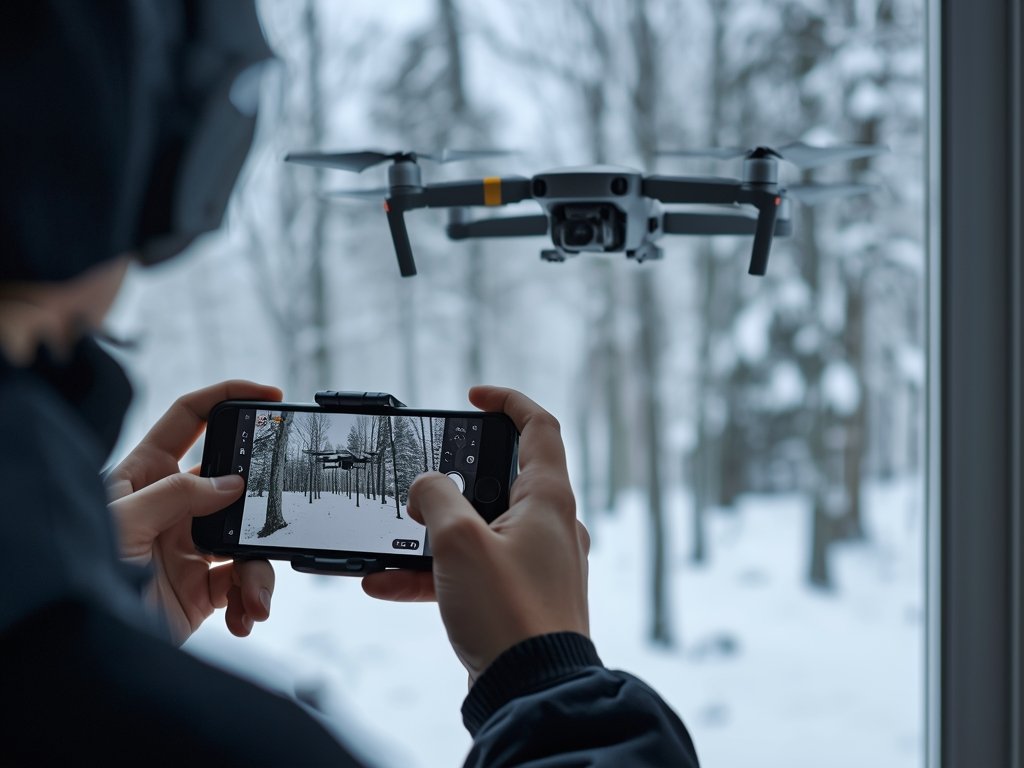
The single most reliable fix for a card that is not recognised, or that throws errors after working fine in another device, is to format it in the drone itself. When you format a card in a computer, the computer chooses the file system it prefers. When you format in the drone, the drone chooses the format it was designed to write to. That difference is enough to turn a working card into a non-working one and back again.
To format in the drone: put the card in, power on, and use the format option in the flight app — usually under camera settings or the storage page. Wait for it to finish, and do not power the drone off halfway through. Then take a test photo and record a short video, and check both appear in the app. If that fixes the error, the format was the problem.
One warning: formatting erases everything on the card. Copy any footage you want to keep onto a computer first, and only then format. If the card contains the only copy of footage you need, do not format it — jump to the recovery section below first.
Avoid reformatting on the computer and then moving the card back to the drone as a routine. Every format on a different device is a chance to reintroduce the mismatch. If you must format on a computer, use a full format rather than a quick one, and choose the file system your drone’s manual specifies for your card size.
exFAT vs FAT32: Which One Your Drone Wants

The choice between exFAT and FAT32 is where a lot of card problems quietly start, and it depends on the size of the card. As a general rule, cards of 32 gigabytes and below are usually formatted FAT32, while larger cards — 64 gigabytes and up — are usually exFAT. That is simply how cards ship. The practical limit is that FAT32 cannot hold a single file larger than 4 gigabytes, so a long 4K recording on a FAT32 card will be split into separate files at that point, or stop altogether.
If your drone’s manual specifies a file system for your card size, follow the manual. If it does not, format the card in the drone and let the drone choose. Do not reformat a large card as FAT32 on a computer to match a smaller card, and do not format a small card as exFAT on a hunch. Trust the drone’s own format command over every other device’s guess, and the errors tend to stop.
Write-Speed Errors During 4K Recording
A write-speed error that appears ten or twenty seconds into a 4K recording, while photos and short clips work fine, is almost always the card. The drone must write a continuous stream of video data, and a card slower than that stream falls behind, and the drone stops recording rather than writing corrupt video.
The fix is to upgrade the card, but before you buy a new one, test properly. Record at your highest setting for a full minute, then for five minutes, and watch whether the error returns. A card that passes a ten-second test and fails at a minute has a small speed boost cache and slow memory underneath, and it is not good enough. Lower the bitrate: if a lower bitrate records cleanly and the top bitrate fails, the card is the bottleneck, not the slot. If the drone flies smoothly but the footage itself ripples, that is not a card problem at all — it is the jello effect.
Corrupt Files and Lost Footage: Recovery Steps
Corrupt footage usually comes from the recording being interrupted mid-write. The drone lost power, the battery was removed, the card was ejected while recording, or the drone crashed hard — and the file was left without its proper ending. The data is usually still on the card; the file is just incomplete, which is why the player refuses it.
First, stop using the card. Every new recording can overwrite the very files you are trying to rescue, so put the card aside and work from a copy. Make a full image copy on a computer if you can, then run a photo and video recovery tool on the copy, not the original. Recovery tools scan for file signatures rather than file tables, which is why they can find footage the card itself can no longer list.
Some drones can also repair a file themselves: power the drone on with the card inserted and record a short new clip, which can prompt the drone to finalise the interrupted file. That works on some models and not others, and only try it after you have already copied the card. If the footage matters — a paid job, a once-only event — send the card to a professional recovery service and stop writing to it entirely. Otherwise, try one recovery tool on the copy, and check the files end to end before trusting them.
After a recovery, do not keep using a card that has failed. Once a card has corrupted files, retire it or demote it to non-critical use. Cards are consumables with a limited number of write cycles, and heavy 4K recording uses them up faster than occasional use. Retiring a failed card is cheaper than losing a flight to the same fault twice.
Card Care: Habits That Stop Errors Before They Start
Most SD problems are caused by habits rather than hardware. First, always stop the recording before you power the drone off, and always power the drone off before you remove the battery or the card. Every interrupted write is a small gamble with your footage.
Second, move footage off the card regularly, and format the card in the drone after each transfer. A card used as long-term storage — half full, files deleted one by one over months, never formatted — accumulates fragmented space, and its write speed gradually falls. A full format in the drone clears that out. Treat the card as a shuttle between drone and computer, not as an archive.
Third, keep cards clean, cool and dry. Blow dust out of the slot before inserting a card, and wipe a dusty contact gently with a dry cloth. Store cards in a case rather than loose in a bag — a bent pin or a scratched contact is another source of errors. Never insert a card while the drone is powered on, and never eject one until it is off.
Fourth, test every new card before a real flight. Format it in the drone, then record at your highest video setting for five minutes straight and play the result back on a computer, end to end. If it passes, it is a good card. If it fails, return it now, while it is new — and if its label promised a high speed, treat it as a probable fake and do not buy from that seller again.
When the Card Slot Is the Problem

Sometimes the card is fine and the slot is not. If every card you try fails in the same drone — good cards, from good sellers, freshly formatted in the drone — the slot, its contacts or the drone’s internal reader are the suspect. Inspect the slot in good light: the contacts inside should be clean, straight and evenly spaced. A bent pin or a corroded contact can stop a card from being read, or cause intermittent errors that look like card faults.
Clean the slot with a short burst of compressed air, holding the can upright and the nozzle well clear of the opening. Do not poke anything into the slot, and do not use liquid cleaners — the contacts are fragile. If the slot is visibly damaged, or a known-good card still fails after cleaning and formatting, the drone needs a repair.
Also check that the card seats firmly and clicks home. Some slots lose their spring tension with age, and a card that is not fully seated will be read in bursts — enough to show in the app, then lost again as soon as the drone vibrates. If you have to push the card twice or wiggle it to get it recognised, the slot’s latch is worn and the drone needs attention.
SD card errors feel random because they arrive at the worst moment, but they almost never are. The card was too slow, the format was wrong, the card was a fake, or the habits around it were loose — and each of those has a clear fix. Buy a card with a proper V rating from a retailer you trust, format it in the drone, move your footage off it after every flight, and test it at your highest setting before you rely on it.
Join Our Pilot Community
Connect with fellow drone enthusiasts, share your aerial shots, and get access to free PDF ebook guides.