


You power on the drone, open the app, and nothing happens. The phone does not see the drone, the app shows “disconnected,” or the live camera feed never appears. The drone itself is fine — the motors arm, the lights blink — but without the phone link you have no camera view, no settings, and on many drones no way to fly at all. This guide works through the causes in the order you should check them, from the free fixes that solve most cases to the deeper problems that need a repair.
Work through the causes in order. The first three solve the large majority of cases, and there is no point reinstalling the app if the real problem is a worn-out cable.
The Short Answer: Check the Cable First
Most drones connect to the phone in one of two ways: a physical cable from the controller to the phone, or a direct Wi-Fi link from the drone to the phone. The troubleshooting path is different for each, so the first step is to know which one yours uses. If your controller has a phone mount and a short cable, you are on a cable connection. If the app connects to a Wi-Fi network broadcast by the drone itself, you are on Wi-Fi.

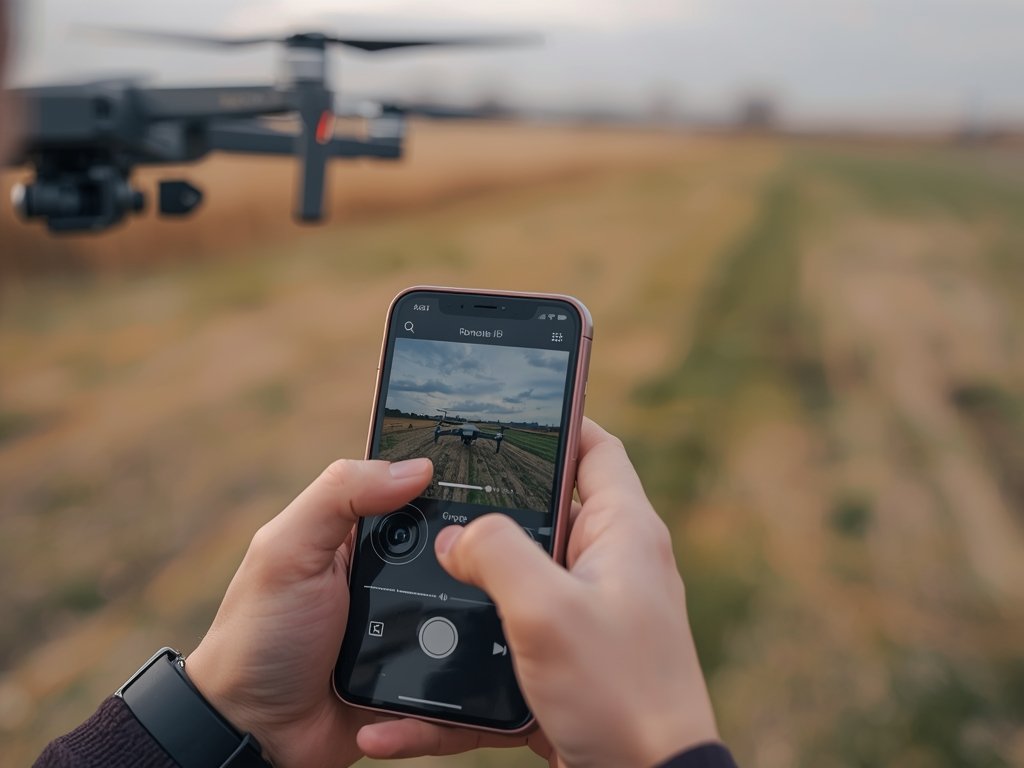
For cable connections, the single most common cause is the cable. Phone charging cables are not all the same: many cheap cables carry power only and no data, and a data cable that has been bent, kinked, or chewed by a bag zip can stop carrying data while still charging the phone. If the phone charges from the cable but the app never connects, the cable is the prime suspect — swap it for a known-good data cable before you try anything else.
For Wi-Fi connections, the most common cause is that the phone is connected to the wrong network. A phone that is already on your home Wi-Fi will not automatically switch to the drone’s network, and the app cannot see a drone it is not connected to. Check the phone’s Wi-Fi list and confirm it is actually on the drone’s network before doing anything else.
Cause 1: The Cable or the Port
Start with the physical link. Inspect the cable for damage — fraying near the connectors, a bent plug, or a connector that wobbles in the socket. Try a different cable, and if possible a different phone, to find out whether the fault follows the cable or stays with the drone. A cable that works for charging but not for the app is a data fault, and it is the single most common cause of a dead phone link.
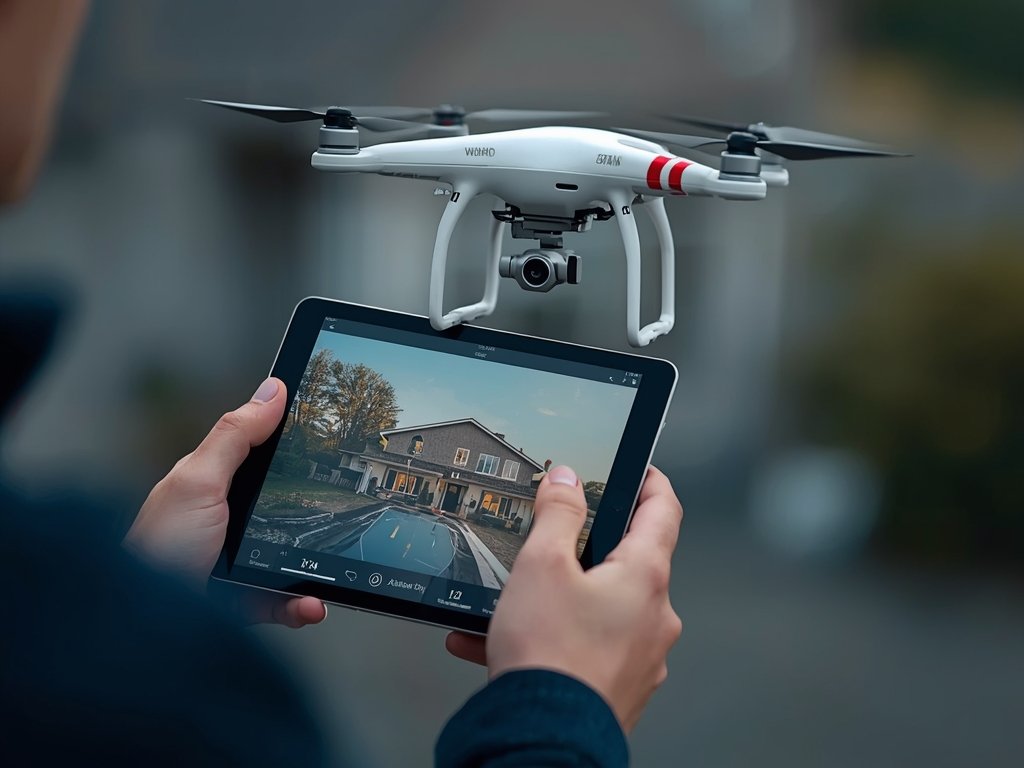
Then check the ports. The phone’s charging port collects lint and dust, and a plug that does not seat fully will charge intermittently and never establish a data connection. Clean the port gently with a wooden toothpick or a blast of compressed air — never a metal pin, which can short the contacts. Do the same for the controller’s USB port: grit in the controller socket has the same effect.
Cause 2: The App Isn’t Talking to the Drone
If the cable is good and the phone still shows nothing, the app itself is the next suspect. First, check that you have the right app. Drone makers change app names over the years, and an older app will not talk to a newer drone — or a newer app will not talk to an older one. Check the manufacturer’s website for the correct app for your exact model, and install it from the official app store, not from a link in a forum.
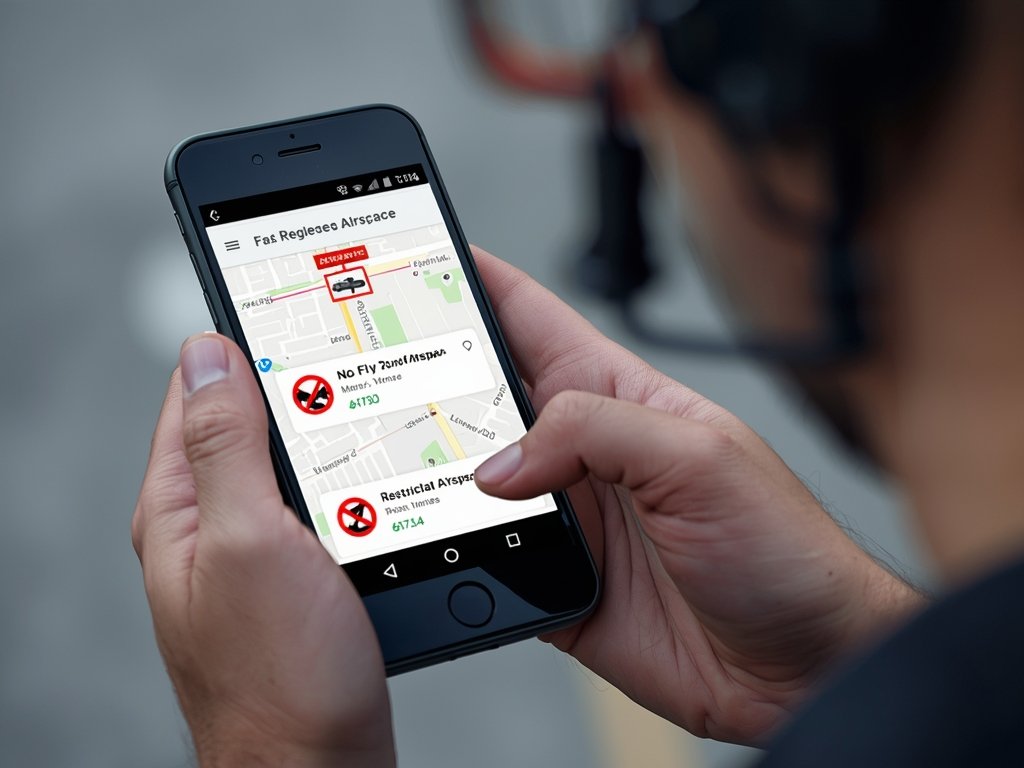
Second, check that the app has the permissions it needs. On both Android and iPhone, the app needs permission to access the USB accessory or the local network, and if that permission was denied once — by accident, or during a hurried setup — the app will silently fail to connect. Go into the phone’s settings, find the app, and confirm that its permissions are on.
Third, force-close the app and reopen it, with the drone already powered on. Apps that are left running in the background sometimes lose the connection state and never recover it until they are fully closed and restarted. If that fails, restart the phone entirely — a fresh boot clears more connection problems than any setting ever will.
Cause 3: Wi-Fi Connection Problems
For drones that connect over Wi-Fi, the link is a small local network that the drone broadcasts. The phone must join that network, and several things can stop it. The most common is that the phone is still on another network — your home Wi-Fi, a remembered hotspot, or a public network it joined automatically. Open the Wi-Fi settings and confirm the drone’s network name is the one connected, with a tick next to it.

The second most common is the password. The drone’s Wi-Fi password is usually printed on the drone, on the battery, or in the manual — and it is easy to mistype. If the phone keeps asking for the password, or connects and immediately drops, forget the network in the phone’s settings and rejoin it from scratch with the password typed carefully.
The third is interference. Wi-Fi drones typically use the 2.4 GHz band, which is shared with every router, Bluetooth device, and microwave in the area. In a crowded place — a park full of people, a housing estate, a shopping centre — the band can be so busy that the phone and drone cannot hold a stable link. Move away from the crowd, or switch the drone’s Wi-Fi to 5 GHz if your model offers it. And remember that some phones will show a “no internet” warning for the drone’s network and offer to switch back to a network with internet — tell the phone to stay connected.
Cause 4: Your Phone’s Settings Are Blocking the Link
Modern phones are cautious about USB accessories and local networks, and several settings can quietly block the drone link. Airplane mode is the obvious one — it turns off both Wi-Fi and the USB data path on some phones, so a phone in airplane mode will never connect. But there are subtler ones.
On Android, the USB connection mode matters. When you plug the cable in, the phone may default to “charging only” and never offer the data connection the app needs. Pull down the notification shade, tap the USB notification, and change the mode to file transfer or the option that allows the app to use the accessory. Some phones also have a “USB debugging” setting that changes how the port behaves — it should normally be off for drone flying.
On iPhone, the “allow accessories” setting can block a new USB device until the phone is unlocked, and a phone that has been locked for a while may refuse new accessories entirely. Unlock the phone before plugging in, and check the privacy settings if the app asks for local-network access — the drone link counts as a local network, and denying that permission breaks the connection. A phone with very little free storage can also fail in odd ways: the app needs room to cache video, and a full phone will sometimes refuse to start the link at all.
Cause 5: Firmware or App Version Mismatch
If the cable, the app, the Wi-Fi, and the phone settings are all fine, the problem is usually a version mismatch. The drone, the controller, and the app all run firmware, and they expect each other to be on compatible versions. A drone that has not been updated in a year may not talk to an app that was updated last week — and an app that is two years out of date may not recognise a drone that has been updated.
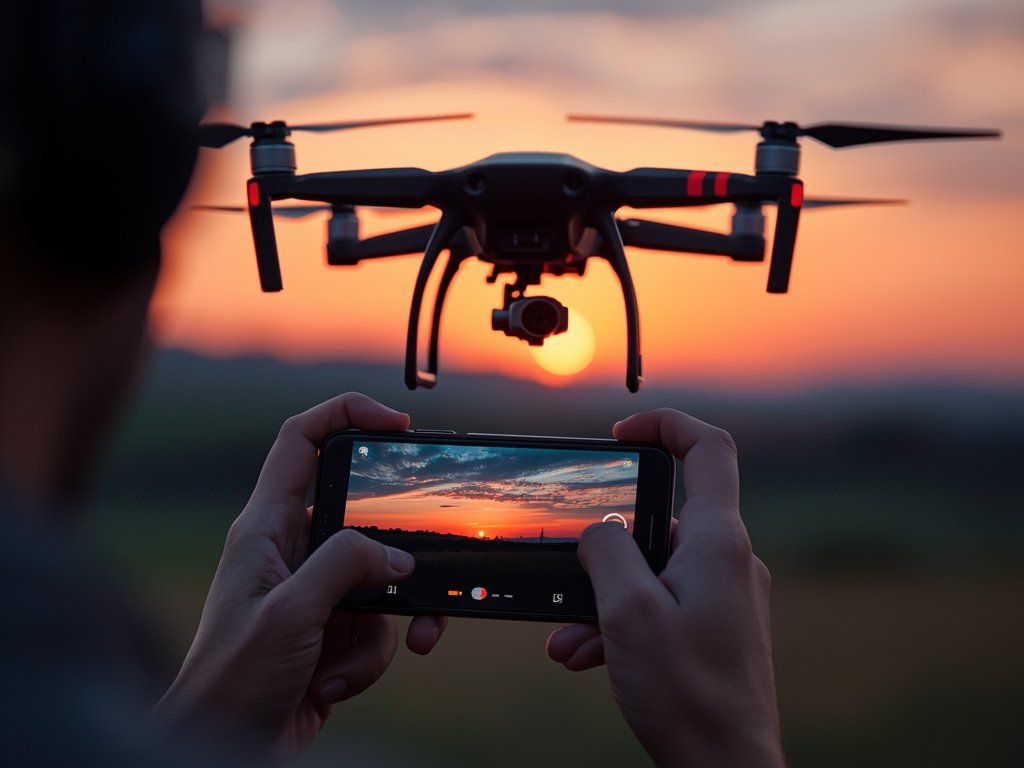
Check for updates for all three: the app in the app store, the aircraft firmware, and the controller firmware. The aircraft and controller updates usually run through the app itself, which creates a chicken-and-egg problem when the app cannot connect — in that case, the manufacturer’s desktop assistant software (connected over USB to a computer) is the way to update the aircraft and controller directly. Never interrupt a firmware update once it has started; a half-finished update is far worse than an old one.
If the problem started immediately after an update, the update itself may be the cause. Check the manufacturer’s support pages for known issues with that version — DJI’s camera-drone pages link through to the current models and their support resources — and check whether a newer version has already been released to fix it. A factory reset of the controller — after noting down your settings — is the last software step before concluding the fault is hardware.
The Fix Order: What to Try, in Sequence
Work through these in order, and test the connection after each step. Most phone-link problems are fixed at step one or two.
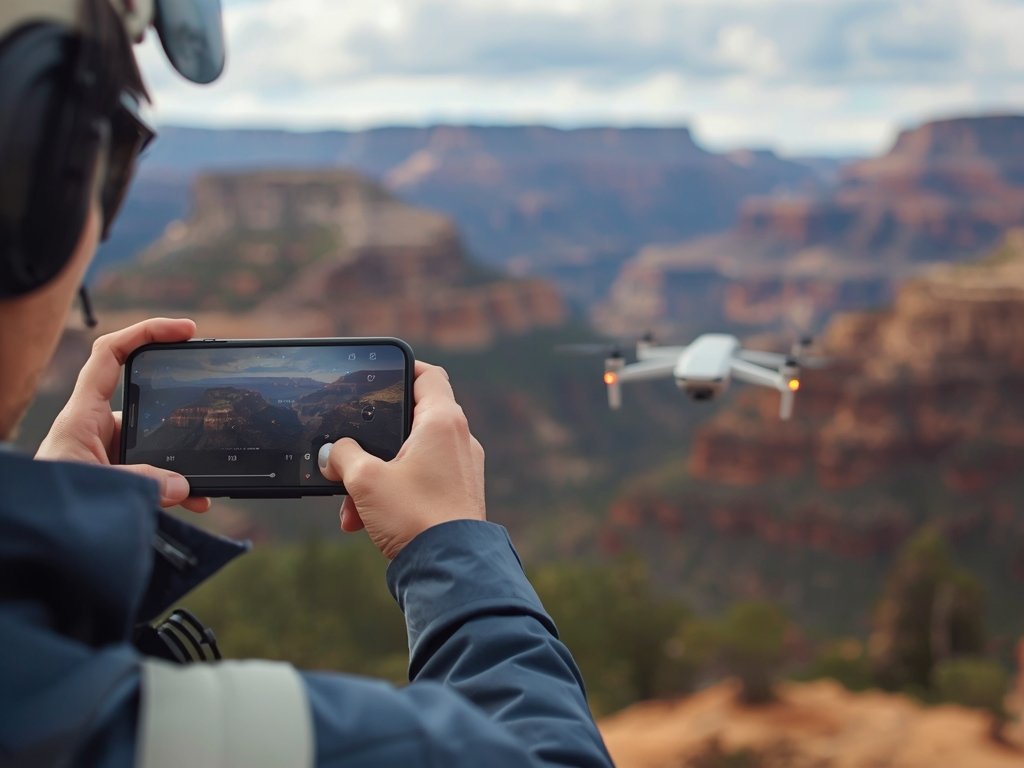
First, swap the cable for a known-good data cable, and clean both ports. Second, confirm the phone is on the right network (Wi-Fi drones) or that the app has its permissions (cable drones). Third, force-close the app, restart the phone, and try again with the drone already powered on. Fourth, forget the Wi-Fi network and rejoin it, or try a different phone to find out whether the fault follows the phone or the drone. Fifth, check for app and firmware updates, and update through the desktop assistant software if the app cannot connect. If none of that works, the fault is likely in the controller’s USB port or the drone’s Wi-Fi module — both repair-shop jobs.
One more check that costs nothing: try the connection somewhere else. Interference, a crowded Wi-Fi band, and even a nearby device can all break a link that works fine in an open field. If the drone connects at home but not at the flying site — or the other way round — the environment is the cause, not the drone.
When the Phone Is the Problem
Sometimes the drone is fine and the phone is the weak link. Older phones struggle with drone apps: the app needs a reasonably modern processor to decode the live video feed, and a phone that is five or six years old may simply not keep up, showing a black screen or dropping the link whenever the video starts. Check the manufacturer’s list of compatible devices — if your phone is not on it, the app may install but never work reliably.
Storage matters too. A phone with almost no free space cannot cache the video feed, and the app may refuse to connect rather than fail mid-flight. Free up space, or move photos and videos off the phone before you fly. And check the battery: a phone in low-power mode throttles its processor and its USB port, which can break a marginal connection. Fly with the phone charged, and turn low-power mode off.
Finally, remember that the phone link is also the safety link: without it, you have no live camera view and no telemetry. If the connection is flaky rather than dead — dropping in and out — do not fly. A connection that drops at 100 metres is worse than one that never connects at all, because it fails when you need it most. Fix it on the ground first. Our drone pre-flight checklist includes the phone link as a check before every takeoff, precisely because a failed link discovered in the air is a problem you cannot fix there.
FAQ
Why does my phone charge from the controller but the app never connects?
Because charging and data are different functions of the same cable. Many cheap cables carry power only, and a damaged data cable can lose its data lines while still charging. Swap in a known-good data cable first.
Does the drone need the internet to connect to my phone?
No. The link between the phone and the drone — cable or Wi-Fi — is local and works without any internet connection. The app may want internet for maps and updates, but the connection itself does not need it.
Why did the connection work yesterday and fail today?
The most common reasons are a cable that finally gave out, an app that updated overnight, a phone setting that changed, or interference at a new location. Work through the fix order above — the cause is usually one of the first three steps.
Can I fly without the phone connected?
On many drones you can take off and fly by line of sight, but you will have no camera view, no telemetry, and no access to settings or return-to-home configuration. It is not recommended, and on some models the drone will not take off at all without the app link. If the link will not come back, see our guide to why a drone won’t take off — the two problems often share a cause.
Join Our Pilot Community
Connect with fellow drone enthusiasts, share your aerial shots, and get access to free PDF ebook guides.