


You push the stick and nothing happens. The drone hovers, or sits on the ground, ignoring the one control that matters most. A stick that does not respond is frightening because it looks like a total loss of control — but it is usually one of three things, and they are easy to tell apart once you know what to look for: the stick itself, the radio link, or the calibration. Work through them in that order, on the ground, with the propellers off or the drone in your hand. Never troubleshoot a dead stick in the air.
The Short Answer: Stick, Link or Calibration
Push the stick and watch the app. If the app shows the stick moving — the on-screen stick indicator or the percentage readout changes — the stick hardware is fine and the fault is downstream: the link, the binding, or the aircraft. If the app shows nothing when you push, the fault is in the controller itself: calibration, a dirty or worn stick, or a hardware failure. That one observation cuts the diagnosis in half, and it takes ten seconds. On DJI controllers the check is in the app’s remote-controller calibration screen, which displays the stick movement as a percentage. On an FPV radio, the check is the Receiver tab in Betaflight Configurator: move the sticks and watch the bars. If the bars do not move, the radio is not sending; if they move but the quad does not respond, the fault is in the quad.
The second observation is which stick is dead. One stick dead points at that stick’s hardware or calibration. Both sticks dead points at the link or the binding. A stick that works in one direction but not the other points at calibration or a worn sensor. A stick that works sometimes points at interference or a loose connection. Write down what you see before you change anything — the pattern is the diagnosis.
The 30-Second Checks

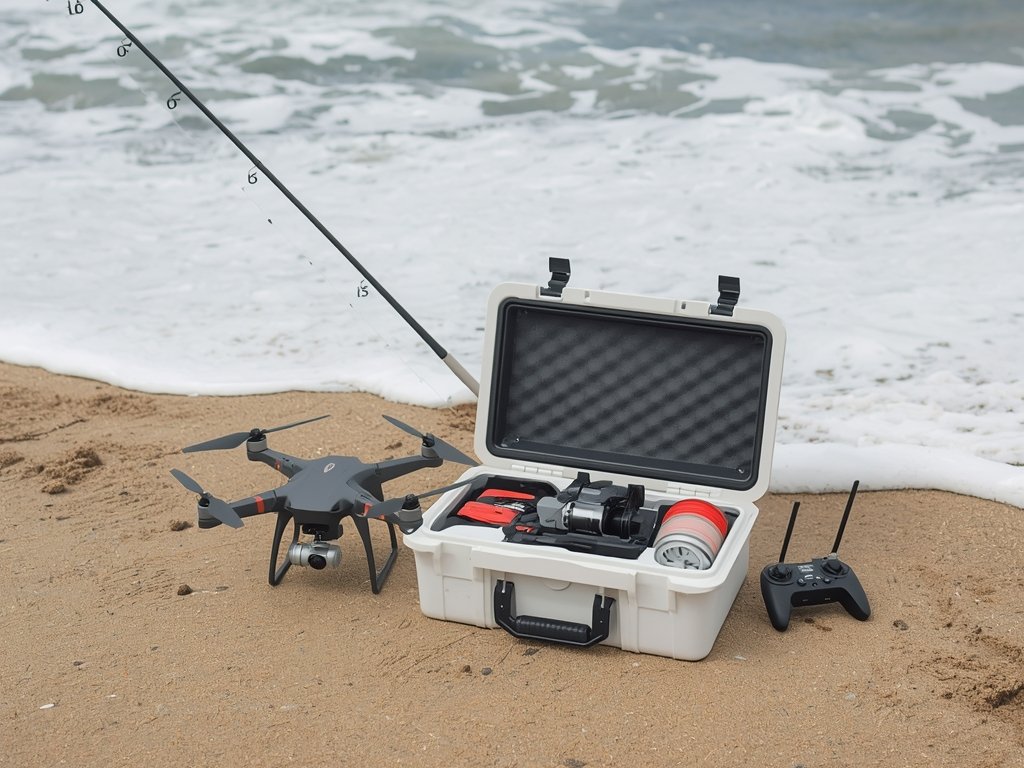
Before you touch a setting, run the checks that cost nothing. Charge both batteries fully: a low controller battery or a low aircraft battery can make the link unstable, and DJI’s support guidance lists low battery among the first things to check. Restart both devices — power the drone off, power the controller off, wait a few seconds, and power back on. Re-seat the phone in the controller if you use one: a loose USB connection between the phone and the controller can freeze the app’s control display without breaking the link, which looks like a dead stick but is not one. Check that the sticks themselves are screwed in properly — on controllers with removable sticks, a stick that has worked loose will not reach its full travel, and the aircraft will respond weakly or not at all in that direction.
Then look at the screen for a warning. DJI controllers display a “Stick Error” warning when the stick input is out of range, and the app will tell you to calibrate. A “Signal Lost” or “Aircraft Disconnected” warning means the link is down, not the stick. An FPV radio with no warning at all but no stick movement in Betaflight means the receiver is not bound or not talking to the flight controller. The message decides the next section; guessing wastes the afternoon.
Calibration: The Fix That Solves Most of It
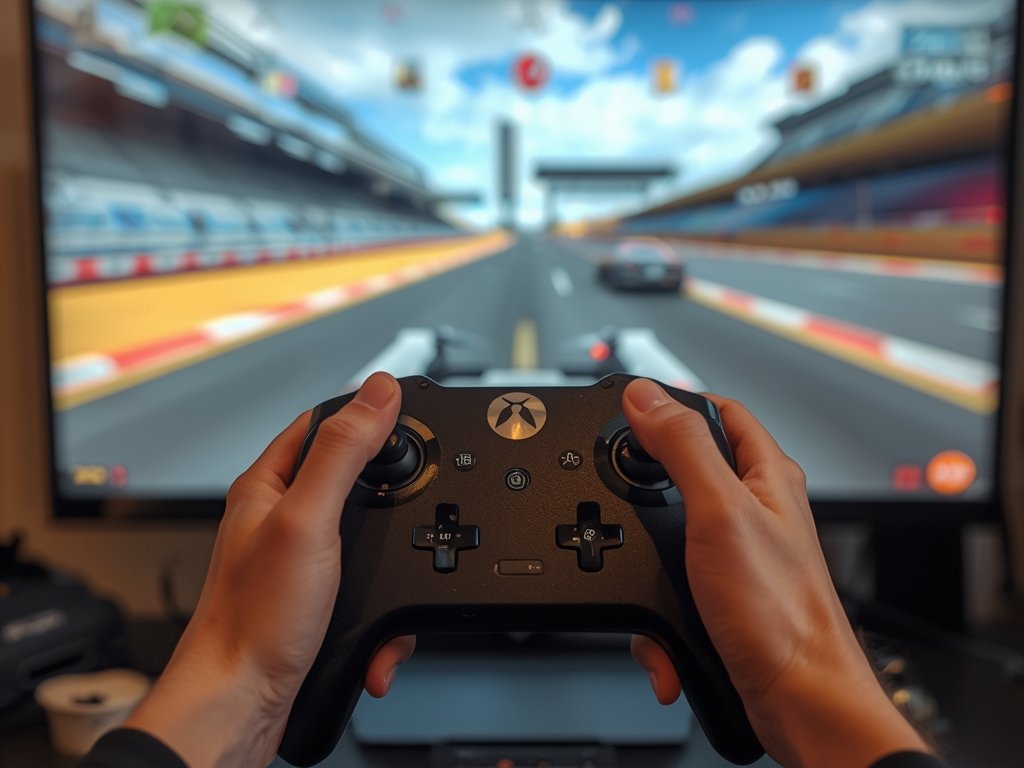
Calibration is the commonest fix for a DJI stick problem, and DJI’s own support page makes it the first repair step. The stick position is read by a sensor, and over time that sensor drifts: the controller thinks the stick is slightly off-centre when it is not, or it reads full deflection before the stick reaches the end of its travel. The result is a stick that seems dead in one direction, or an aircraft that drifts when the sticks are centred. Calibration re-teaches the controller where centre and full travel are, and it takes two minutes.
Connect the aircraft to the remote controller and the mobile device, then open the remote-controller calibration in the app and follow the prompts: push each stick fully in each direction as instructed, and let the app record the range. One detail from DJI’s guidance is worth knowing: during calibration it is normal for the app to show 0 percent when you push the stick fully upward, and then to show the percentage again when you push it fully in the reverse direction. Do not stop halfway because the numbers look wrong — follow the sequence to the end and let the app confirm. After calibration, check the stick readout again: a centred stick should read near zero, and a full deflection should read near 100 percent in each direction. If calibration fails or the readings are still wrong, the sensor itself is worn, and that is the next section.
When the Sticks Are Worn Out
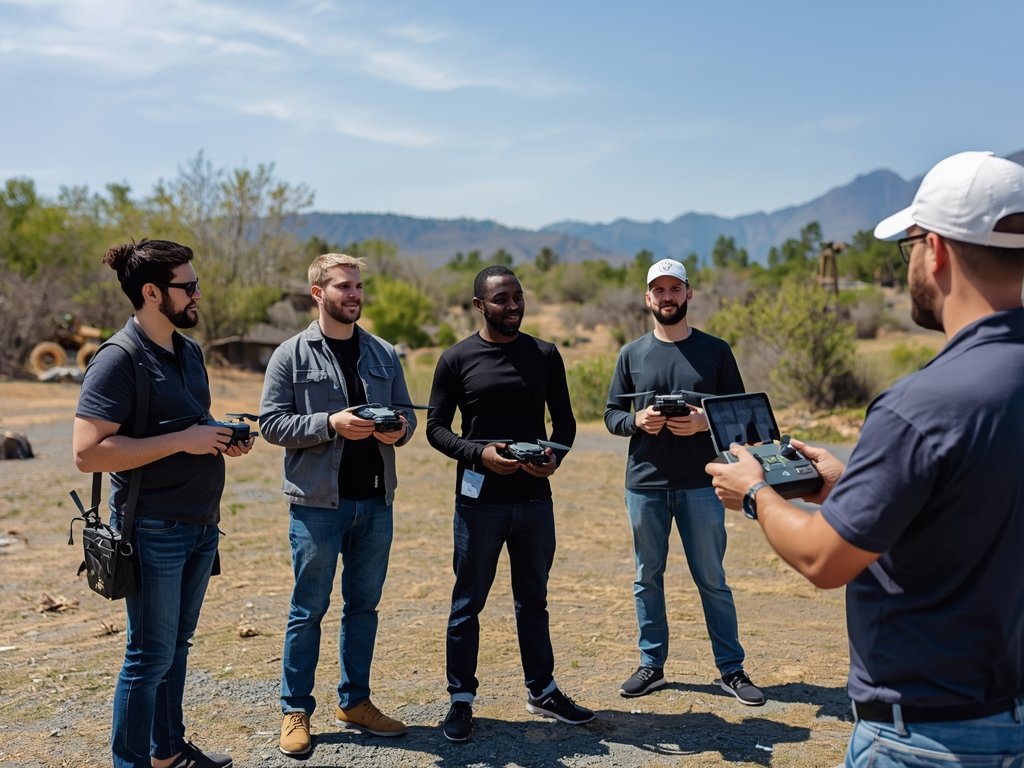
Sticks wear out. Inside each stick is a sensor — a potentiometer on older controllers, a Hall-effect sensor on newer ones — that converts the stick’s position into an electrical signal. Potentiometers wear with use: dust gets in, the resistive track wears, and the signal becomes noisy or drops out at one end of the travel. Hall sensors are more durable but can still fail after a drop or a knock. The symptoms are distinctive: the stick works but jumps, the aircraft twitches when the stick is held still, or the stick is dead only at one extreme of its travel. Dust is the cheapest cause: use compressed air or a small brush to clean gently around the base of the stick, and do not force anything.
If cleaning and calibration do not fix it, the controller has a hardware fault. A controller that has been dropped or knocked often has a cracked stick assembly or a damaged sensor, and DJI’s guidance is direct on this point: if the issue persists after calibration, send the remote controller and aircraft back for inspection. Do not open the controller yourself unless you are prepared to lose the warranty — the stick assemblies are small, the ribbon cables are fragile, and a home repair that goes wrong costs more than the service did. Before you send it in, test with a different controller if you can borrow one: if the aircraft flies normally on the borrowed controller, you have proved the fault is in yours.
The Link: Binding, Interference and Range
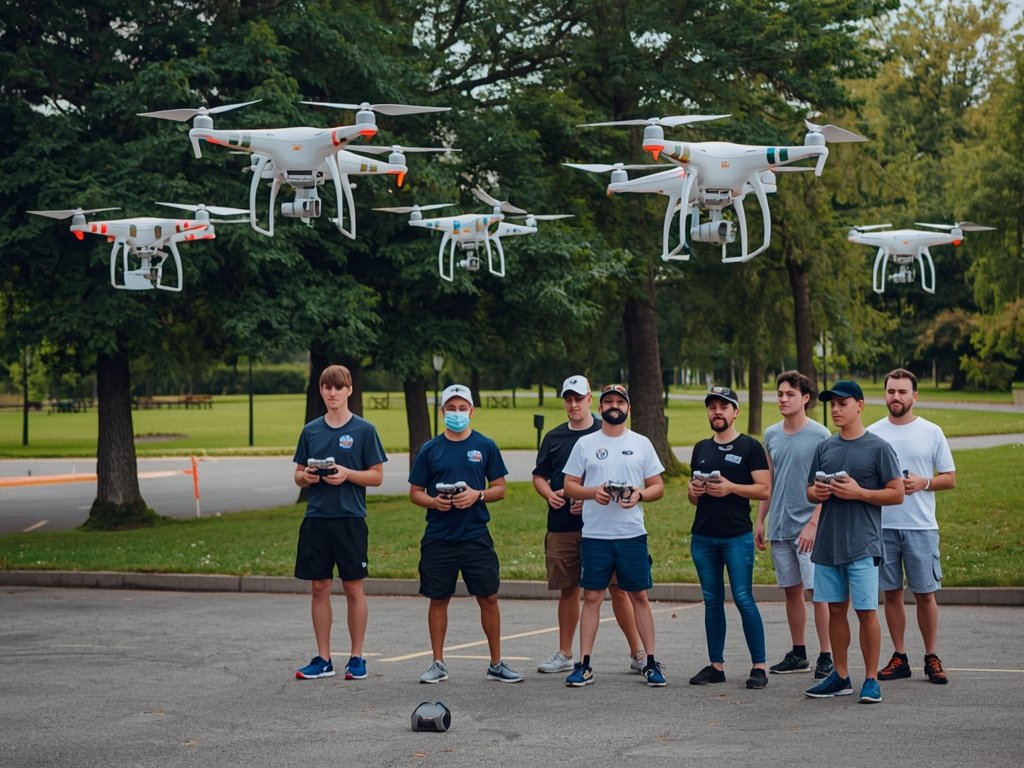
If both sticks are dead and the app shows no stick movement at all, the fault is usually the link. The first step is re-pairing: disconnect the remote controller from the drone and bind them again, following the manufacturer’s instructions exactly. A binding that was interrupted — a low battery during pairing, or a step skipped — can leave the controller connected enough to show telemetry but not enough to pass control inputs. On DJI systems, re-linking is in the app; on FPV systems, re-binding is a receiver procedure, and our guide to binding an FPV receiver covers the ELRS and Crossfire steps.
Interference is the second link fault. Drones use radio signals, and a strong source nearby — power lines, a Wi-Fi router, another pilot’s transmitter — can swamp the control link while leaving the video feed working, which is confusing: the picture is fine, the sticks do nothing. Move to an open area away from the interference and try again. Range is the third: a drone flown beyond its control range stops responding while the video may still show, and the correct response is to wait for the failsafe or to move closer, not to push the sticks harder. If the link fails at short range in an open field, the antennas are the suspect: a bent or damaged controller antenna, or a receiver antenna tucked inside the airframe on an FPV quad, will cut the range to metres.
Firmware Mismatch Between Drone and Controller
Outdated or mismatched firmware can break the control link entirely: the controller and the aircraft speak slightly different versions of the same protocol, and the stick inputs are ignored. Check the firmware versions of both in the app, and update the piece that is behind — aircraft first, then controller, then app. If an update recently preceded the problem, the update itself may be the cause: a controller firmware that installed cleanly but a matching aircraft firmware that failed leaves the pair unable to talk. Our guide to a drone that will not take off covers the same version-check routine, because a mismatch produces the same early symptoms as a dead stick.
On FPV quads the equivalent fault is in Betaflight, not the manufacturer app. If the receiver is bound and the radio is on, but the Receiver tab bars do not move, the fault is the wiring or the port configuration: the receiver’s TX wire must go to the flight controller’s RX pad, and its RX wire to the FC’s TX pad, with Serial RX enabled on the correct UART and the serial receiver provider set to CRSF for both ExpressLRS and Crossfire. If the bars move but are jumbled — throttle moves yaw — the channel map is wrong, and changing it from AETR1234 to TAER1234 (or the reverse) fixes it. The UAVMODEL guide on Betaflight receiver faults walks through the same checks with the LED and wiring tests.
When the Drone Responds Wrongly Instead of Not at All

A stick that produces the wrong movement is a different fault from a dead stick, and it is more dangerous. The commonest cause is a reversed channel or a wrong flight mode: the aircraft yaws when you ask it to roll, or climbs when you ask it to descend. On a DJI aircraft this usually means the control mode has changed — Mode 2 is the default, with the left stick controlling throttle and yaw — and switching it back fixes it. On an FPV quad it means the channel map or a mixer setting is wrong, and the fix is in the Receiver tab, not the air. Check the mode before you fly after any app reset or firmware update, because resets sometimes restore defaults you had changed.
The other wrong-response fault is a stick that is not centred. If the aircraft drifts or climbs slowly with the sticks untouched, the stick calibration has drifted, or the stick is physically stuck off-centre by dirt or damage. Land, power down, and calibrate. If the drift follows a crash, the airframe itself may be bent: our guide to a drone that flies crooked after a crash covers the frame and motor checks, because a bent arm produces a constant drift that no amount of stick calibration will fix.
When to Send It In
Send the controller in when calibration fails, when the stick readings jump or drop out after cleaning, when the controller has been dropped and a stick is physically loose or grinding, or when a known-good controller flies the aircraft normally and yours does not. Keep the video: record the app’s stick readout while you push the stick, showing the dead zone or the jump, and include it with the repair request — it proves the fault in a way words do not. Note the firmware versions of the aircraft, the controller and the app, and the exact warning message, if any. If the aircraft is still under warranty, do not open the controller: a home repair voids it, and a stick assembly is a cheap part for a service centre but an expensive mistake at home. Our guide to an FPV drone that will not arm covers the same decision point on the FPV side, where the fix is more often a setting than a part.
Frequently Asked Questions
Why do my sticks work in the app but the drone does not respond? The stick hardware is fine and the fault is downstream: the binding, the link, or a firmware mismatch. Re-pair the controller and the aircraft, check the firmware versions match, and test in an open area away from interference.
How often should I calibrate the sticks? After every firmware update, after a drop or a knock, and whenever the aircraft drifts with the sticks centred or a stick feels dead at one end of its travel. It takes two minutes and it is the first step in DJI’s own troubleshooting.
Can a phone problem make the sticks stop working? A loose USB connection or a frozen app can make the control display freeze without breaking the link, which looks like a dead stick. Re-seat the phone and restart the app before you blame the controller.
My FPV quad arms but the sticks do nothing in the air. What is it? Usually the receiver link: check the Receiver tab bars first. If they do not move, rebind and check the UART wiring. If they move but the quad does not respond, check the channel map and the Modes tab arm range.
Join Our Pilot Community
Connect with fellow drone enthusiasts, share your aerial shots, and get access to free PDF ebook guides.